TurtleEdit user guide
The main window has two panes. Use the upper pane to edit text or source code. The lower pane, or output pane, displays compiler messages and program output. You cannot edit text in the output pane. TurtleEdit opens one file at a time.
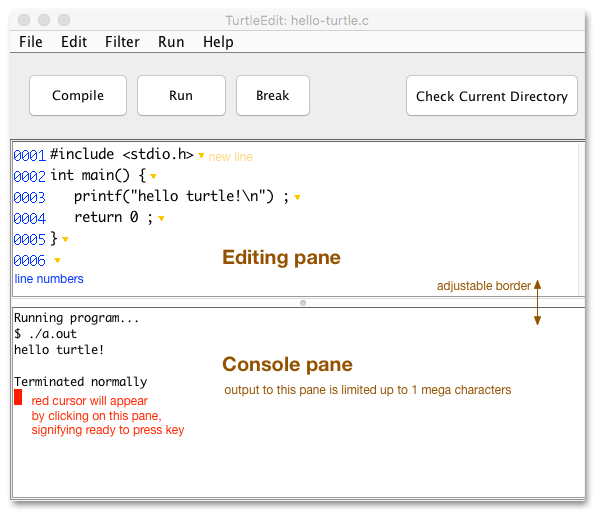
TurtleEdit keeps editing features to a minimum. Line numbers and line wrapping are always enabled. Multibyte characters are outlined in orange so you can distinguish them from ASCII characters.
Setting up external programs
The and buttons launch external programs, such as a compiler or the program you have compiled. Before using these buttons, choose Settings from the Run menu and enter the commands you want them to run.
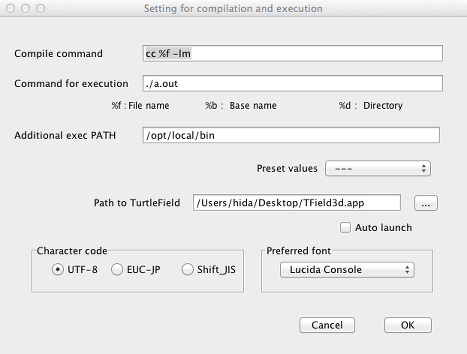
In Compile command, enter the command used to compile your source file. TurtleEdit replaces the following placeholders when it runs a command:
%f: the name of the file you are editing.%b: the filename without its extension; for example,fooforfoo.c.%d: the directory containing the file.%c: the directory containing TurtleEdit.%h: your home directory.
If an argument contains spaces, enclose it in single quotation marks or use
%s in place of each space.
When you save a file, TurtleEdit sets the working directory to the directory containing that file.
For example, to compile a C program, enter the following in Compile command:
cc %f -lm
In Command for execution, enter the command to run when you click . For a compiled C program, a typical command is:
./a.out
Use Additional exec PATH to add directories to the PATH
environment variable. Separate multiple directories with colons on macOS and Linux,
or semicolons on Windows.
You can also select a predefined configuration from Preset values.
Path to TurtleField and Auto launch are needed only if you want to use TurtleField graphics software with TurtleEdit. Otherwise, leave these settings unchanged.
Choose a character encoding under Character code and a font under Preferred font. Click to save your settings. TurtleEdit will restore them the next time it starts.
Example: using TurtleEdit with LaTeX
You can use TurtleEdit as a front end for LaTeX. If LaTeX and its tools are
installed in /opt/local/bin, for example, use these settings:
Compile command: /opt/local/bin/latex %f
Command for execution: /opt/local/bin/xdvi %b
Additional exec PATH:  /opt/local/bin
Adding /opt/local/bin to PATH also allows
xdvi to find other executables in that directory.
Command and path tips
On Windows, use backslashes in paths, as in C:\Users\bob.
To open an external terminal and run a command, you can use a command such as one of the following in Command for execution:
Mac:    open -a Terminal command_name
KDE(Linux): konsole -e command_name
Windows:   CMD command_name
If a shell command contains spaces, such as:
/bin/bash -c "dvipdfmx file_name.dvi && acroread file_name.pdf"
use single quotation marks around the shell command in Command for execution:
/bin/bash -c 'dvipdfmx %b.dvi&&acroread %b.pdf'
Here, %b is replaced by the filename without its extension.
Writing and running a program
Once the commands are configured, TurtleEdit works as a simple integrated development environment (IDE):
- Write your source code in the editing pane.
- Save the file using the File menu.
- Click . If compilation fails, use the messages in the output pane to find and fix the errors.
- Once compilation succeeds, click . To stop a running program, click .
In the workflow described here, the command
must finish successfully before TurtleEdit will let you use .
For an interpreted language that does not need compilation, you can assign a command
to run the program or check its syntax to the button.
For example, ruby -cw %f checks the syntax of a Ruby program.
Programs that read keyboard input
To send keyboard input to a running program, first click the output pane. When a red cursor appears, the pane is ready for you to type.
Output buffering can affect programs that ask for input. For example, consider this C program:
#include <stdio.h>
main(){
	int x ;
	printf("x? ") ;
	scanf("%d",&x) ;
	printf("x=%d\n",x) ;
}
The x? prompt may not appear before the program waits for input,
because the output is buffered. Call fflush(stdout) after printing
the prompt to display it immediately:
	printf("x? ") ;
	fflush(stdout) ;
	scanf("%d",&x) ;
Alternatively, disable output buffering by calling setbuf(stdout, NULL)
before the first call to printf():
	setbuf(stdout,NULL) ;
	printf("x? ") ;
	scanf("%d",&x) ;
For an alternative that does not require changes to your program, see the pseudo-terminal launcher guide.
Output limit
The output pane can display approximately one million characters. This limit helps prevent problems when a program produces excessive output, for example because of an infinite loop.
Working with regular expressions
To filter text in the editing pane, choose RegEx Filter from the Filter menu. Enter a regular expression in the dialog and click . The results appear in the output pane.
TurtleEdit uses Java's regular expression syntax. Refer to Java's documentation
for details. By default, a dot (.) does not match a line break.
Choose one of these filtering modes:
- Matched string: output only the text that matches the pattern.
- Matched line: output only lines whose entire contents match the pattern.
- Lines containing pattern: output each line that contains a match.
Select Line number to include line numbers in the output.
To replace matching text, choose RegEx Replace from the Filter menu.
The result appears in the output pane; the text in the editing pane is unchanged.
In the replacement string, use $1 through $9 to refer to
the corresponding capturing groups in your regular expression.
The Filter menu also includes common text-processing functions,
such as sort, uniq, and tr.
For more complex processing, choose External command from the
Filter menu to run an external tool such as awk.
Choose Swap buffers at the bottom of the Filter menu to exchange the contents of the editing and output panes. This lets you use the result of one filtering operation as the input for the next.